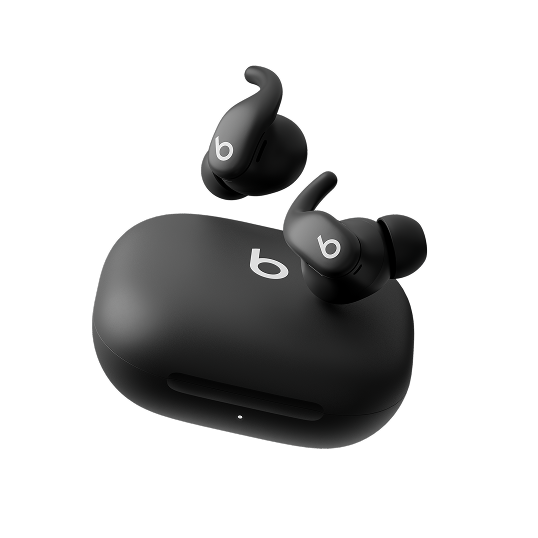
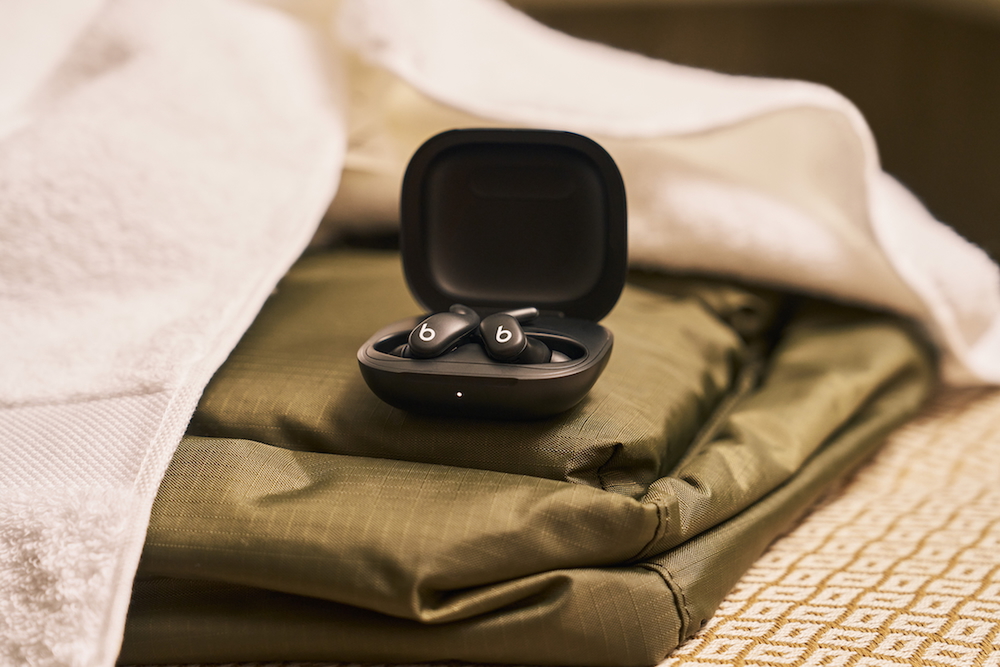
Powerbeats Fit are ready to pair straightright out of the box. Before you begin, make sure your device has the latest version of iOS or iPadOS installed. When pairing, your device must have Bluetooth® wireless technology turned on and also be connected to a Wi-Fi or mobile network, otherwise you may not have access to Find My features.
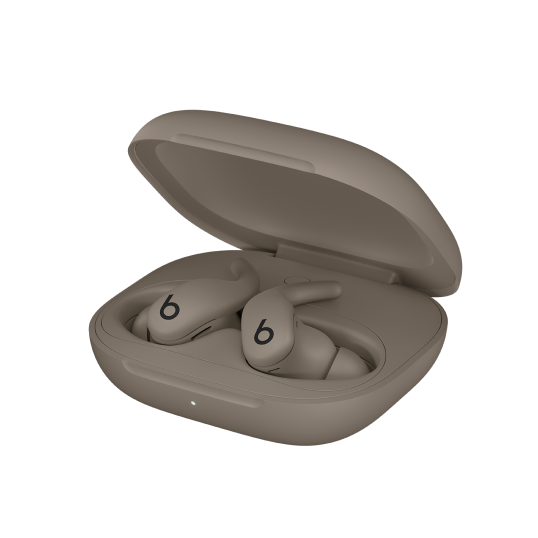
Open the case with your earbuds inside, then hold it next to your unlocked device. Follow the onscreen instructions, then tap Done.
If you don’t see the setup animation, you can pair Powerbeats Fit with your device manually. Go to Settings > Bluetooth, then select your Powerbeats Fit. Press and hold the system button on the inside of the charging case for about 5 seconds with the earbuds inside, or until the light pulses white.
After you set up your Beats with one Apple device (such as like your iPhone), your Beats are automatically paired to your other devices (such as like your Apple TV or Mac) where you’re signed in to the same Apple Account, so you can connect with just a tap.
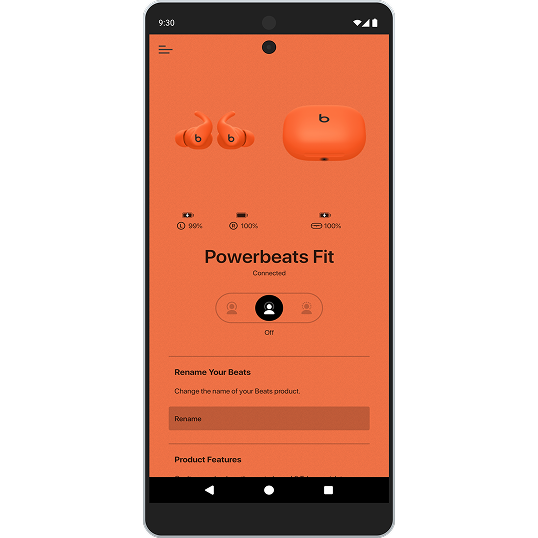
Note: There is no Beats app for iOS or iPadOS. All settings can be adjusted in your device settings.
Powerbeats Fit are ready to pair straightright out of the box. Before you begin, make sure your device has the latest version of iOS or iPadOS installed. When pairing, your device must have Bluetooth® wireless technology turned on and also be connected to a Wi-Fi or mobile network, otherwise you may not have access to Find My features.
Open the case with your earbuds inside, then hold it next to your unlocked device. Follow the onscreen instructions, then tap Done.
If you don’t see the setup animation, you can pair Powerbeats Fit with your device manually. Go to Settings > Bluetooth, then select your Powerbeats Fit. Press and hold the system button on the inside of the charging case for about 5 seconds with the earbuds inside, or until the light pulses white.
After you set up your Beats with one Apple device (such as like your iPhone), your Beats are automatically paired to your other devices (such as like your Apple TV or Mac) where you’re signed in to the same Apple Account, so you can connect with just a tap.
Note: There is no Beats app for iOS or iPadOS. All settings can be adjusted in your device settings.
Powerbeats Fit are ready to pair straightright out of the box. Before you begin, make sure your device has the latest version of iOS or iPadOS installed. When pairing, your device must have Bluetooth® wireless technology turned on and also be connected to a Wi-Fi or mobile network, otherwise you may not have access to Find My features.
Open the case with your earbuds inside, then hold it next to your unlocked device. Follow the onscreen instructions, then tap Done.
If you don’t see the setup animation, you can pair Powerbeats Fit with your device manually. Go to Settings > Bluetooth, then select your Powerbeats Fit. Press and hold the system button on the inside of the charging case for about 5 seconds with the earbuds inside, or until the light pulses white.
After you set up your Beats with one Apple device (such as like your iPhone), your Beats are automatically paired to your other devices (such as like your Apple TV or Mac) where you’re signed in to the same Apple Account, so you can connect with just a tap.
Note: There is no Beats app for iOS or iPadOS. All settings can be adjusted in your device settings.